Risk-Based Position Sizer Update

The FC Risk Based Futures Position Sizer has been updated to address the following message in the message log: “Order Qty is less than the number of targets”

This message has been modified to address its true meaning: “Order Qty is Equal to Zero”. This means the risked amount is too low or the stop is too big.

An alert will pop-up should this happen, and you can set the alert sound number in the study settings.

In addition, a recent change includes the ability to have a fixed dollar amount for the maximum risk, bypassing the percent amount, and the balances.

Please update to version 2860 or above.

If you have not purchased the position sizer, you can read more about it here.

Send me your Sierra account name from Help>>About and I will set you up with a free 2-week trial.

brad@forgivingcomputers.com

Copy Drawings Between Charts, Chartbooks, and Instances


Now Available: Export Drawings to CSV files and Import to any chart, in any chartbook, in any instance  

  • Copy drawings with two paired studies: one for Exporting, other for Importing.

  • Copy commonly used drawings (see next page) between:
    • Charts
    • Chartbooks
    • Instances
    • Systems

  • Export User Drawings from any chart
    • All types or select by type
    • Set Path and File name for CSV file
    • Exports can be done periodically or with a Manual Export Button

  • Import User Drawings to any chart
    • All types or Select by Type
    • Set Path and File name for CSV file
    • Automatic or with Manual Import Button
    • Imported drawings are not user modifiable.

  • Exported drawings are standard Comma Separated Variable (CSV) text files that can be saved to local folders, on shared network locations, or emailed.

  • File Naming Rules:

    • Every Export chart should have its own CSV file names, and not ones shared between Open Export Charts.  

    • Multiple different CSV files can be imported into the same chart
  • The same CSV file can be imported into multiple charts

More Info Here


FC Advanced Risk Management Tool V2 Release Notice

The FC Advanced RIsk Management Tool has been updated with the following features:

1. Added the Option to Lock Trading when already in a position, preventing more than one trade at a time.

2. Added the Option to Disable the Trading Lock and use a Subgraph to control another study.

If you already own the tool, restart and open FC Advanced Risk Manager V2.cht You can download the latest user guide from My Downloads.

If you want to know more, click here.

For a limited time, get $10 off with this coupon code good through the end of 2025: LockOut10off

S3 Version Update

Users of the S3 system are advised that a minor change has been made, which most won’t notice, but if your S3 study no longer works after a restart, then you need to update Sierra Chart to version 2755 or above.

The change removed the Text Tag from order, which appears in the Note column of the Trade Activity Log. This allows you to set your own Text Tag:

Sierra Chart OCO Bracket Move Tool is Available

Move your stops and targets together. This tools adds a missing feature to Sierra Chart: The ability to modify a bracket in one step. The OCO Bracket Move Tools monitors your nearest stop and nearest target. If it detects a change, and the study is enabled, the other side of the brack order moves. Move the stop, the target moves. Move the target, the stop moves. On Sale now at $49.99. https://forgivingcomputers.com/product/fc-oco-bracket-move-tool-for-sierra-chart/

Announcing: Advanced Risk Management Tool

Have you ever wanted someone watching out for you, helping enforce your trading plan rules, and telling you when it is time to stop?  Now you can add a custom study to any chart and have it keep track of:

  • Consecutive Winning Trades
  • Consecutive Losing Trades
  • All Trades
  • Cumulative Loss
  • Drawdown

This study can count these not for the day, but for the last so many minutes. When the triggers are met, all trading is locked, forcing you to wait, or make some adjustments.  

The study can only see trades and profit/loss data on the chart it is attached to. However, when it locks trading, it locks for all chartbooks and charts. An Emergency Flatten button can get you out a position if the trading is locked. 

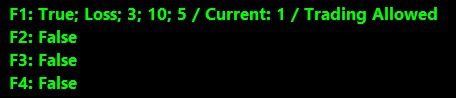
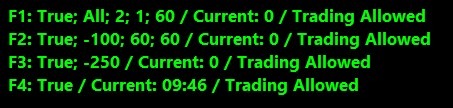
Let’s say you want to lock trading (i.e. no new trades, no modifications, no exits) for 5 minutes if you have 3 consecutive losses in the last 10 minutes. 

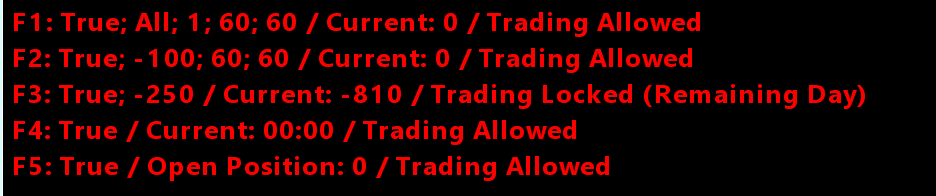
The on-screen summary panel looks like this: 

If it gets to 3 losses, it will look like this:

Feature 1 handles the counts of Wins, Losses, and All trades. 
Feature 2 handles the Cumulative loss
Feature 3 handles the Drawdown
Feature 4 handles Eight No-Trade Time Periods

Trading Unlocked

S3 T3 Combo Chartbook Combines S3 and T3 in one Display

Save 15% off the monthly subscription when purchased as the combined trading systems and chartbook and also get the original S3 and T3 packages included.

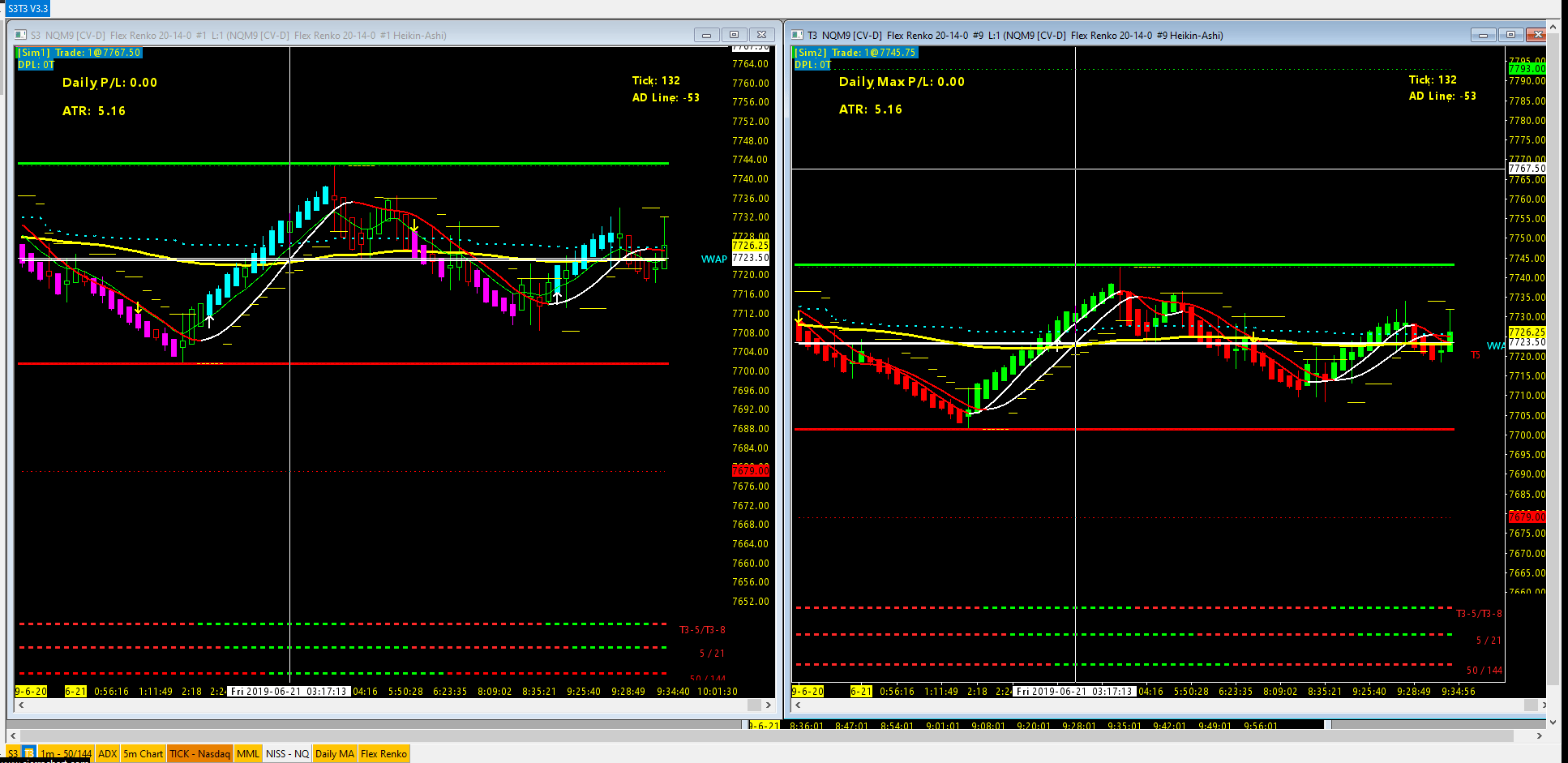
The popular S3 and T3 systems have joined forces with the S3  T3 V3.3 Auto-Trading System.

The left chart shows the S3 System, the right chart shows the T3 System. S3 is for short term “scalpiing” trades, and T3 is “Trade the Trend” which looks for longer term confirmation of trend baed on 3 different time frames.  Either one or both can be enabled for autotrading. The charts include the latest versions of the S3 and T3 studies. When the S3 T3 combo is purchased, the S3 and T3 systems are also included as separate chart books.

Current subscribers to the S3 T3 combo are entitled to this latest update at no extra charge. Restart Sierra chart to get the new files.

More info here.


Why Risk Management is Important, Especially with FOREX

In trading, capital preservation is key. There will always be losses, so protecting your account against several losses in a row is what good traders do. They do that by limiting their risk on every trade. If you risk 50% of your account balance on a single trade, you can see how losing two or more trades in a row will lead to large drawdowns.  Trading with a relatively small amount of risk will help keep you around to trade another day.

A good trading plan will allow for a maximum loss per trade, or per day, or week. Let’s look at the maximum loss per trade.   A good Risk Tolerance would be 1% to 3% of your account balance. This means if your account balance is $10,000 you would be willing to risk $100  to $300 on any trade. Let’s use 1% for this example.

Now the problem is, where do place your stop, and how to ensure you only buy or sell  the right number of units (contracts) to keep your maximum loss? With Futures trading, you pretty much know how many contracts you can buy or sell, because your account balance and margin are such that it could be a low number, say, 1, 2, 5, or 10. You also know with futures, how much a stop is in ticks, so you can mentally do the math and determine the max loss per trade. So for NQ, if the tick size is .25 and it is worth $5 a tick, and you want a 10 tick stop, then you can do the math in your head: 10×5=$50.00. With a  $100 max loss (1% of the account balance), then you can put on 2 contracts with a risk of $50 each to reach your $100 Max risk.

With Forex, it is a whole different ball game. First of all, the tick size is usually 0.00001, and the number of positions can easily be in the 10’s of thousands. Also with Forex, you have your account currency, the base currency, and the quote currency, some or all of which factor into the math. Note that the calculations are different if the three currencies are all different, or if two are the same (e.g. account currency and quote currency).  The Tick Size for JPY is also different. 

Ok, so assuming we know how to do the math, are we done yet? Well, no. Your margin and leverage play into determing the final number, as does the limit your broker may place on any currency pair trade.  Finally, if you have any open positions, you may have insufficient funds available to put on the next one, so that needs to be comprehended before you try to spend more than you have available to spend. 

Don’t know how to do the math? There are websites that can help you calculate the proper position, and you can also do it in a spreadsheet if you can create or acquire one that does this.  You would have to key in by multiple inputs based on your stop criteria, and hope the market doesn’t move significantly before you have had a chance to enter the orders. 

What would really help is a tool that streamlines the process and automates as much of the data gathering as possible. A tool that lets you focus on your trading strategy, and give you confidence that you will be only risking the proper amount according to your trading plan.  The actual quantity is just a number, as long as it keeps you with your max loss per trade limit, you don’t really care what it is.

To address this problem, Forgiving Computers announces the availability of the Forex Automatic Advanced Order Size Risk Management Tool And Trailing Stop Manager.  This revolutionary tool lets you enter your stops on the chart with the mouse, and with a few clicks, complete the complex order size calculations and submit your order.  Developed in cooperation with a professional Forex trader, this tools simplifies the entire process and saves your brain for trading and not multiplying and dividing very large and very small numbers. 

It also enters up to 5 targets, each based on a multiplier of your risk. Once in the trade, a sophisticated trailing stop will work on your behalf to help keep you in the green, and it will allow you to have your final target become a runner that trails based on teh Kiwi Trailing Stop.  

0
    0
    Your Cart
    Your cart is emptyReturn to Shop